


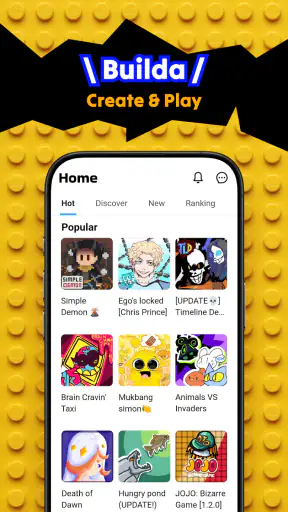
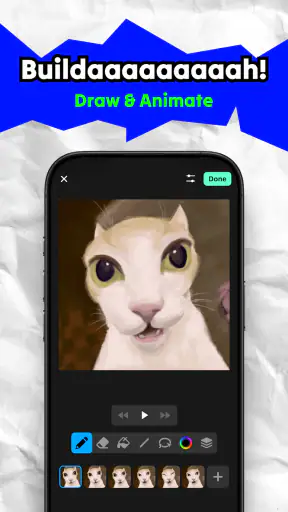
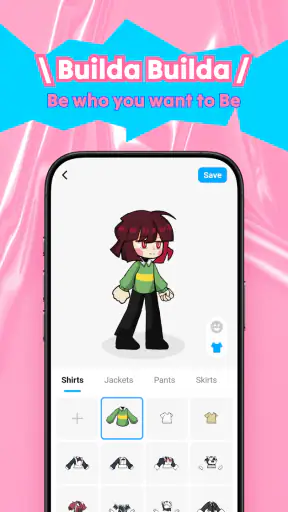
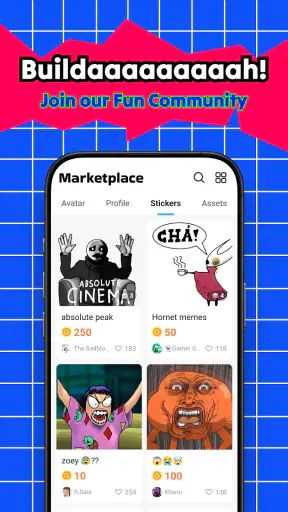
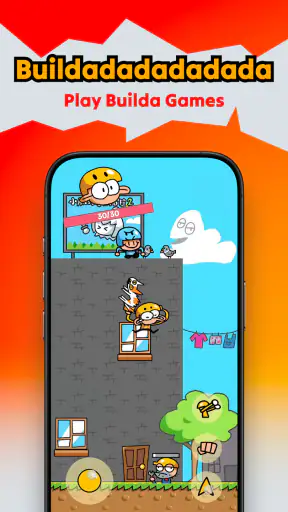
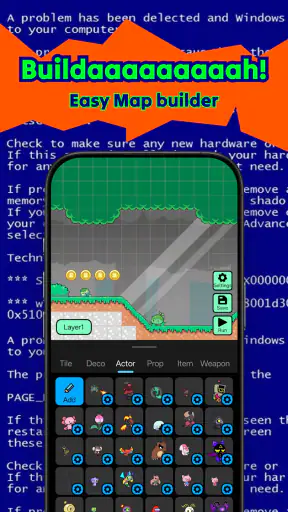
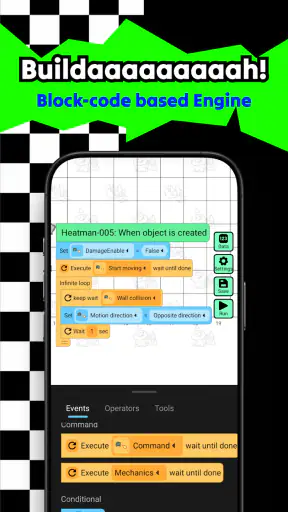
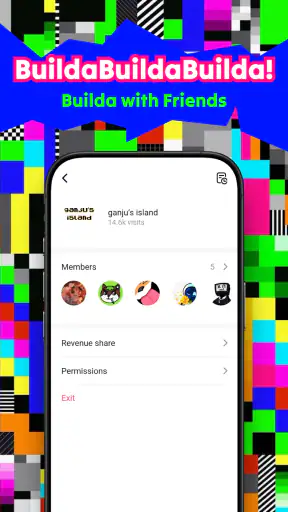
I approached Builda - Create and Play less like a traditional lesson app and more like a small creative workshop on a phone. Its central idea is appealing: instead of only consuming prepared content, I can make a world, draw characters, and give those characters movement. That changes the experience from passive screen time into a project I can shape myself.
That creative freedom is also the reason this app will not suit everyone. If I want a quick quiz, a fixed course, or a clearly measured learning path, I would choose something else. Builda is better for experimenting, making visual stories, and learning through trial and error. The education label makes sense to me because it encourages planning, visual thinking, and basic animation habits, but it does not feel like a conventional school tool.
Hortor Interactive presents the app as a free download for everyone, with optional purchases ranging from $0.99 to $104.99 per item. It has an average rating of 4.0 from around 68 thousand ratings, and its reach of over 5 million installs suggests that the creative format has found a substantial audience. I tested it with one practical question in mind: can a young creator actually turn a blank screen into something personal without getting lost?
What creating a world feels like on a phone
The first thing I noticed is that the appeal depends on doing, not reading. The app invites me to think in pictures: what should a character look like, where should that character exist, and how can movement make the scene feel alive? Even a simple idea, such as a character walking into a room, becomes a sequence of small decisions. That is useful because it makes creativity concrete rather than leaving it as an abstract promise.
Drawing on a phone has an obvious trade-off. It is immediate and convenient, but the screen is much smaller than a tablet or computer display. Fine details can take patience, especially when I am trying to keep a character’s shape consistent from one frame or pose to the next. I found that simple designs work best: bold outlines, recognizable colors, and a limited number of visual elements are easier to control than a crowded scene.
My most useful approach was to start with a tiny project instead of trying to build an entire universe. I would create one character, give that character a clear purpose, and then make a short scene around one action. This avoids the common trap of spending too long decorating before there is anything to animate. Starting small is not a limitation here; it is the fastest way to understand the creative workflow.
The app is especially interesting for children who enjoy drawing but have not yet tried animation. It can turn a sketch into a sequence with a beginning, middle, and end. A parent could also use it as a shared activity: one person invents the setting, another designs the character, and both discuss what should happen next. That kind of collaboration gives the app more value than simply handing over a phone and hoping it keeps someone occupied.
For older users, the attraction is different. Builda can serve as a low-pressure place to test visual ideas before moving to a more demanding animation program. It is not the tool I would pick for professional production, detailed illustration, or a long film project. Its strength is the first creative step, where an idea needs room to become visible without requiring specialist knowledge.
Where connectivity becomes part of the experience
Because this is a mobile app with a creative focus, connection quality can affect how comfortable the experience feels even when the actual drawing task is the main attraction. Opening the app, moving between creative areas, handling account-related screens, or reaching anything that depends on online delivery can feel less predictable on a weak connection than it does on reliable home internet. I would avoid beginning an important project while moving through a place with unstable coverage.
This matters most when a child is using the app independently. A slow response can look like a frozen screen, which may lead to repeated taps or an accidental change of selection. My practical advice is to give the app a calm start: open it before the creative session, wait for the interface to settle, and then begin drawing. That small habit reduces frustration and makes it easier to tell whether a problem is with the connection or with the current editing action.
I would also separate creative planning from network-dependent moments. Before opening the app, I can decide on a character’s color, the scene’s basic setting, and the action I want to show. That way, a delayed screen does not interrupt the thinking part of the project. The app becomes more enjoyable when I use it as a focused activity rather than constantly switching between it and other apps.
Connection issues are particularly noticeable for families using shared or restricted networks. If the app needs to load something at a key moment, a crowded household network can make the experience feel inconsistent. I would not promise a completely uninterrupted session in every environment, because the quality of the connection can shape what happens around the creative tools. A stable network is the safer choice when the goal is to explore without pauses.
Why mobile use works, and where it does not
The phone format gives Builda a clear advantage over many desktop-first creative tools: I can work on an idea in short bursts. A few minutes in a waiting room can be enough to adjust a character or rethink a scene. That makes it suitable for spontaneous creativity, especially for users who do not have access to a computer with drawing software.
At the same time, short mobile sessions encourage unfinished projects. I might make one interesting character and then move on before developing the world around it. To avoid that, I found it helpful to give each session one job only. On one occasion I would focus on the character’s appearance; on another, I would work on the setting; later, I would concentrate on movement. This division makes progress easier to notice.
A realistic everyday use case would be a child creating a short visual story after school. They could sketch a character during a quiet break, decide on a setting at home, and then animate one simple action before dinner. The result does not need to be elaborate. The useful part is the sequence of choices: planning, making, reviewing, and changing. That is a gentler introduction to creative software than opening a complex editor filled with unfamiliar controls.
Phone size also affects who should use it. Younger users may find touch controls approachable, but they can still need guidance when a gesture changes something unexpectedly. Users with larger hands or limited screen space may prefer a tablet for more comfortable drawing. I would choose a bigger screen whenever the project depends on detail, while keeping the phone for quick sketches and simple animated ideas.
Another mobile trade-off is attention. Notifications, calls, and the temptation to jump into another app can break the creative flow. Builda benefits from a short, uninterrupted session, so I would use it when I can give the project a few quiet minutes. It is not the best choice if I want to multitask constantly or keep a lesson running in the background while doing something else.
Recovering when a project or session goes wrong
Creative apps are judged not only by how easily they help me make something, but also by how safely they let me recover from mistakes. In Builda, I would treat every important change carefully. Before experimenting with a major visual decision, I prefer to pause and check what I am changing. That is especially important on a small touchscreen, where a quick tap can be harder to interpret than a mouse click.
My best recovery habit is to work in stages and review after each stage. I would not add a complicated character, setting, and animation in one uninterrupted burst. If something looks wrong, a staged workflow makes the problem easier to identify. Was the issue in the drawing, the scene, or the movement? Separating those decisions turns a vague failure into a manageable correction.
Connection problems deserve the same caution. If a screen takes longer than expected, I would wait rather than repeatedly tapping buttons. Repeated input is a common source of confusion in any mobile editor because the app may process actions after a delay. Closing and reopening the app should be a last resort while I am still unsure whether the current action has finished.
I also recommend keeping expectations modest during the first session. The goal should be to learn how the creative areas relate to one another, not to produce a polished animation immediately. A small test project is useful because it shows how the app responds to drawing and movement without putting a large idea at risk. Once that basic experiment feels comfortable, I can invest more time in a personal world.
Parents may want to establish a simple rule: do not spend money to solve a creative problem before understanding what the purchase changes. Since the app is free but includes optional items priced from $0.99 to $104.99 each, I would discuss purchases in advance, particularly when a child is exploring the app alone. A paid item should support a clear creative decision, not become an automatic response to confusion or impatience.
Using less data without losing the creative rhythm
When I use a creative app on mobile data, I think about timing rather than trying to measure every action. I would open Builda on a trusted connection before a longer session, especially if I expect to move through several parts of the app. This reduces the chance that a weak signal interrupts the moment when I am ready to create.
Short projects are also sensible for data-conscious use. Instead of repeatedly opening and closing the app during a commute, I would plan one focused session and finish a defined task. That approach is better for concentration as well as connectivity. It prevents the app from becoming a series of disconnected checks in which I forget what I intended to change.
If I were setting up a child’s device, I would review the device’s own mobile-data and purchase controls before handing it over. The app is free to start, but the presence of in-app purchases means the phone’s safeguards matter. This is not a reason to avoid the app; it is simply part of using a creative platform responsibly when the user may not understand the difference between experimenting and buying.
Compared with a traditional drawing app, Builda has a more directed creative purpose because the goal is not only to make a still image. Compared with a standard education app, it offers less of the immediate structure that comes from lessons, quizzes, or fixed exercises. A drawing app may be better when I want complete control over a single illustration. A conventional animation editor may be better when I need precise timelines and production tools. Builda sits between those choices, favoring approachability and playful world-building over technical depth.
That middle position is valuable for beginners, but it can feel limiting for experienced creators. Someone already comfortable with professional illustration or animation software may quickly want more control than a phone-centered creative environment provides. I would recommend Builda as a first creative playground, not as a replacement for a full production workflow.
Who should try it and who should pass
I would recommend Builda to children who like drawing characters, families looking for a shared creative activity, and beginners who want to understand the basic relationship between artwork and movement. It is also a good fit for anyone who enjoys making small visual experiments without committing to a complicated course or a large software package.
I would be more cautious about recommending it to someone seeking formal academic instruction. Although the creative process can build useful skills, the app is not the same as a structured curriculum with measurable lessons. It may also disappoint users who want advanced animation controls, detailed editing, or a completely desktop-like workflow.
The Everyone age rating makes it broadly approachable, but age suitability still depends on supervision, device habits, and purchase settings. Younger children may benefit from an adult showing them how to begin with a small project and how to stop safely when a screen behaves unexpectedly. Older children can probably take more ownership, especially if they already understand basic drawing and file-management habits.
The current version is 1.80.10, and the minimum operating system is Android 7.0. That makes the app accessible to many Android users, though the quality of the experience will still depend on the device’s screen size, responsiveness, and available space. I would check those practical conditions before judging the creative tools themselves, because an older or cramped phone can make drawing feel harder than it needs to be.
My verdict on creativity, connection, and everyday value
After using it as a small creative workspace, I see Builda as an inviting introduction to making animated worlds rather than a conventional education package. Its best quality is the way it encourages a user to move from “I have an idea” to “I can show that idea.” Drawing a character is only the start; deciding what the character does creates a reason to think about sequence, setting, and visual communication.
Connectivity adds a practical layer to that experience. I would use a stable connection for opening the app and for any moment that appears to depend on online loading, while planning short sessions that do not rely on constant switching. I would also avoid repeated taps during delays, keep projects small while learning, and use the device’s purchase controls when a child is involved.
My final recommendation is simple: choose Builda if you want a friendly place to experiment with characters and animated scenes, not if you need a full animation studio or a formal course. It is free to begin, aimed at everyone, and supported by a large user base, but its real value comes from the hands-on process. With realistic expectations, a steady connection, and a habit of building one small idea at a time, I think it can turn spare mobile moments into genuinely creative work.
For me, that makes Builda - Create and Play worth trying. I would start with a tiny character and one action, test the workflow before investing in a larger world, and decide from there whether its playful approach matches the way I like to create.


